The robots.txt file is a plain text document that sits at the root of your site (yoursite.com/robots.txt) and tells bots which paths they may crawl. Google consults it before crawling pages, so a mistake in it can hide entire sections.
One detail changes how you should use it: robots.txt controls crawling, not visibility. It’s not a lock, and it doesn’t remove anything from Google.
How to read it
The file is made of groups of rules. Each group names the bot it applies to and what that bot may or may not visit:
- User-agent Names the bot the group applies to. The asterisk means all bots.
- Disallow Blocks crawling of a path, such as
/wp-admin/. - Allow Permits a path, usually as an exception inside a blocked one.
- Sitemap Gives the full address of your XML sitemap so search engines find it right away.
A typical WordPress example:
User-agent: *
Disallow: /wp-admin/
Allow: /wp-admin/admin-ajax.php

Sitemap: https://yoursite.com/sitemap.xml
The exception for admin-ajax.php is there because some themes and plugins also use it on the public site.
What is worth blocking
Block what doesn’t help searchers and makes bots waste crawls:
- Admin areas Such as
/wp-admin/on WordPress. - Internal search It generates endless near-identical pages, for example with
/?s=. - Cart and checkout Personal pages with no value for people arriving from Google.
- System files Temporary or service folders no visitor needs to see.
Don’t block products, articles and categories: they’re what you want found. Also keep the CSS and JavaScript files needed to display the page crawlable, because Google loads them to see the page like a visitor.
robots.txt is not a lock
Anyone can open your robots.txt, so listing a private path there makes it more visible, not less. A blocked page can also still appear in results, without a description, if another site links to it. To keep a page out of results you need the noindex tag; for truly private content, use a password.
The most expensive mistake
A site under development often has Disallow: / under User-agent: *, which blocks everything. If that line survives the launch, Google stops crawling the site and visibility drops. Open your robots.txt right after every launch or migration: it’s one of the checks in the SEO checklist for launching a new website.
FAQ
Does robots.txt stop a page from being indexed?
No: it blocks crawling, not indexing. If another site links to that address, Google can still show it in results, without a description.
To keep a page out of results you need the noindex tag, and the page must stay crawlable, otherwise Google never reads the tag. For confidential content, use a password.
What happens if my site has no robots.txt file?
Nothing serious: when the file doesn’t exist (a 404 response), search engines treat everything as crawlable.
It’s still worth having one, even a minimal one, to point to your sitemap and to exclude the areas you don’t want crawled.
How do I declare my sitemap in robots.txt?
With a line starting with Sitemap: followed by the full address, including https://.
You can list several sitemaps, one per line, and the line applies to all bots even outside the rule groups. Also submit the sitemap in Search Console: it’s the most direct way to know whether Google reads it.
Should I block AI bots in robots.txt?
It’s an editorial choice, not a technical requirement. It depends on what you want: showing up in assistants’ answers or keeping them from reading your text.
You block one bot at a time, with a dedicated User-agent group, and blocking an AI bot doesn’t change your Google rankings. Note that a firewall can also turn bots away regardless of robots.txt. We cover it in the guide on optimizing your site for ChatGPT and Perplexity.
How do I check that my robots.txt works?
Open yoursite.com/robots.txt in your browser: the file should load and should not contain Disallow: / for all bots.
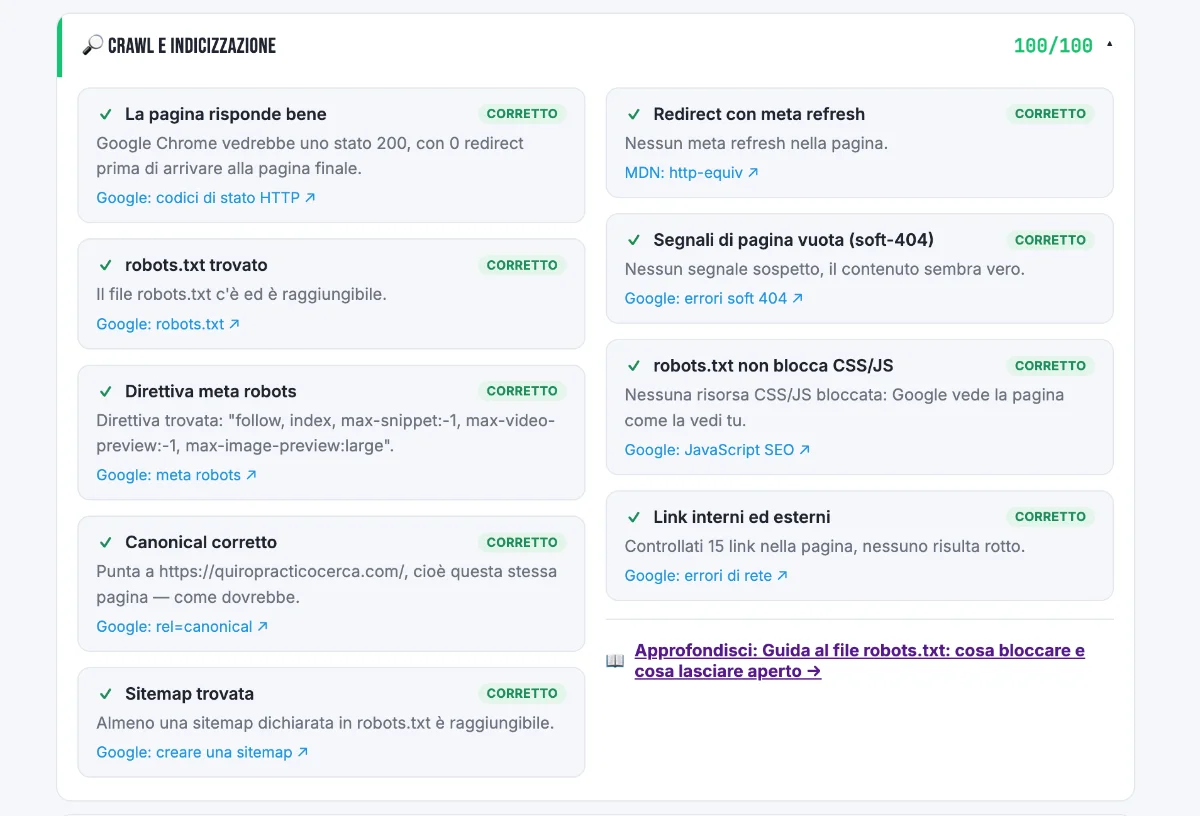
For a more precise check, the robots.txt report in Search Console settings shows the versions Google has read and any errors. Our free audit also checks that the file exists and doesn’t block CSS and JavaScript.
This article is for informational purposes. SEO results depend on many factors and timelines vary by site.